The first time an owner signs in, TowCAD walks through a short setup:
Your company: company name, yard address, phone and billing email.
Invoice setup: your rates and payment terms.
Logo: shown on dispatch, the driver app, invoices and scene packets. A transparent PNG or an SVG works best.
Add employees, then tap Finish setup.
You can change any of this later under Company (logo, request page, payment link, reminders) and Rates.
Invite users and pick roles
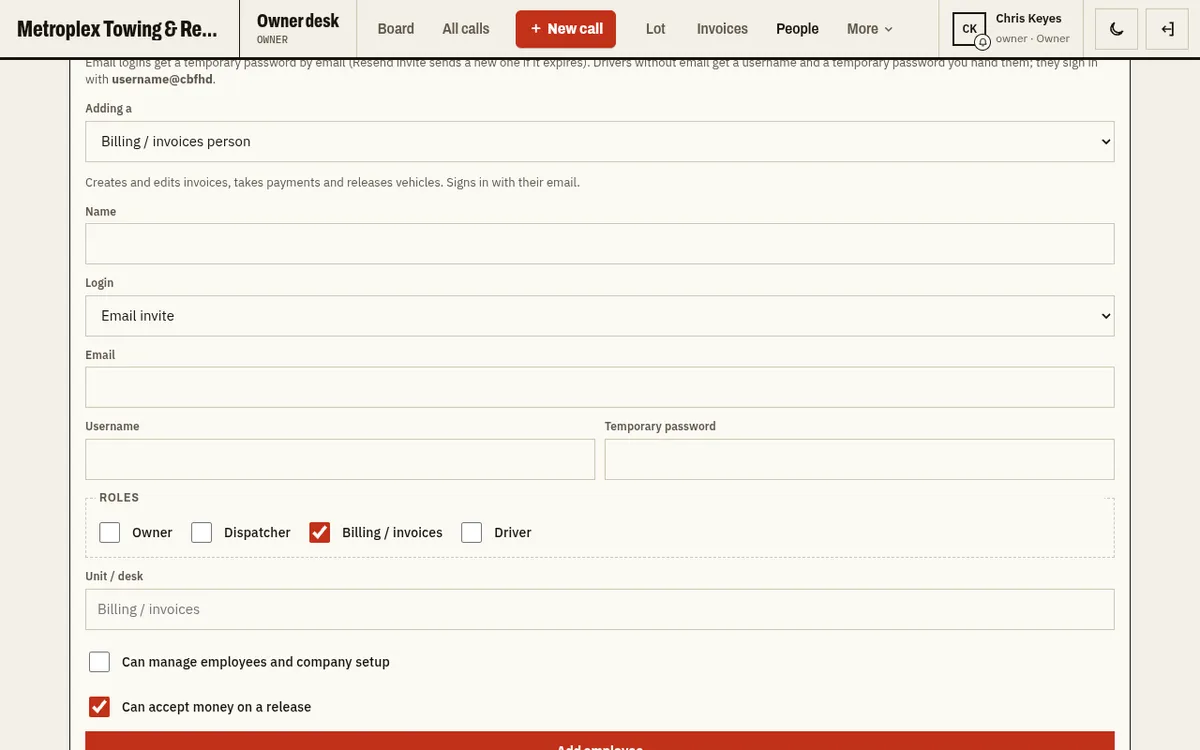
Go to People and add a person. Pick a preset: Billing person, Dispatcher, Driver (email), Dispatcher + Driver, Driver (username, no email) or Owner / co-owner. You can also turn on Can manage employees and company setup and Can accept money on a release for each person.
People with an email get a temporary password by email and choose their own password the first time they sign in.
Drivers without email sign in with a username in the form username@COMPANYCODE. You set their password, and you can use Reset password in People if they forget it.
From People you can also Resend invite, Change roles, Turn off someone or Remove person. Names of former employees stay on their past calls and invoices.
Adding a person in People with role presets
Add trucks and drivers
Open Trucks and tap Add truck. Enter the unit number and type (rollback, wrecker and so on), plus optional plate, VIN, year, make and model. Set a Default driver, or a Today's driver for this shift only. Trucks on shift show up on the Board so calls can be assigned to them.
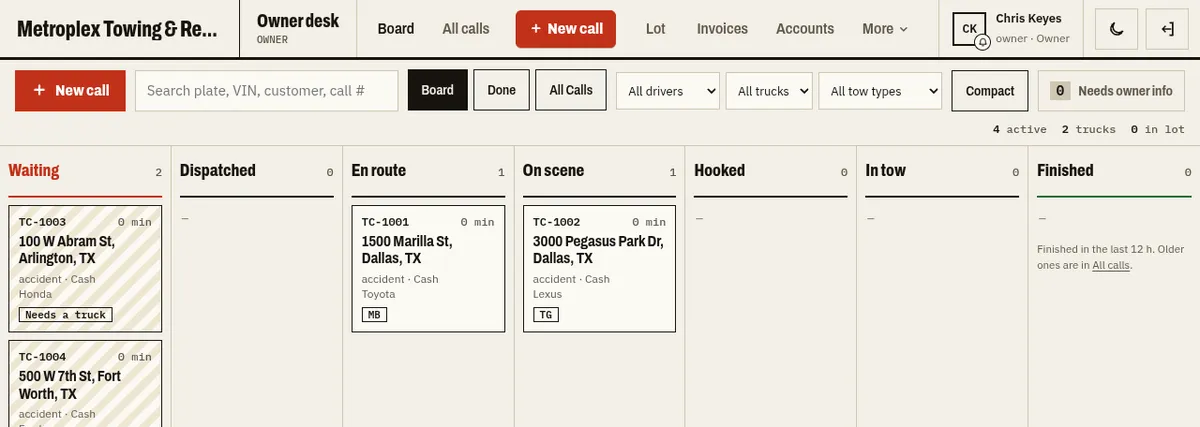
The Board is the home screen for dispatch. Calls move left to right through lanes: Waiting, Dispatched, En route, On scene, Hooked, In tow and Finished. On a desktop the map and the list of trucks on shift sit under the lanes.
The Board with calls in each lane
Search by plate, VIN, customer or call number, and filter by driver, truck or tow type.
Compact shrinks the cards when the Board gets busy.
Tap a call to open it, assign a driver and truck, or change its details.
Finished calls drop off the Board after a set number of hours (set it in Company). Older calls are in All calls.
Online requests from your request links show up under Requested; accept or decline them there.
Take a new call
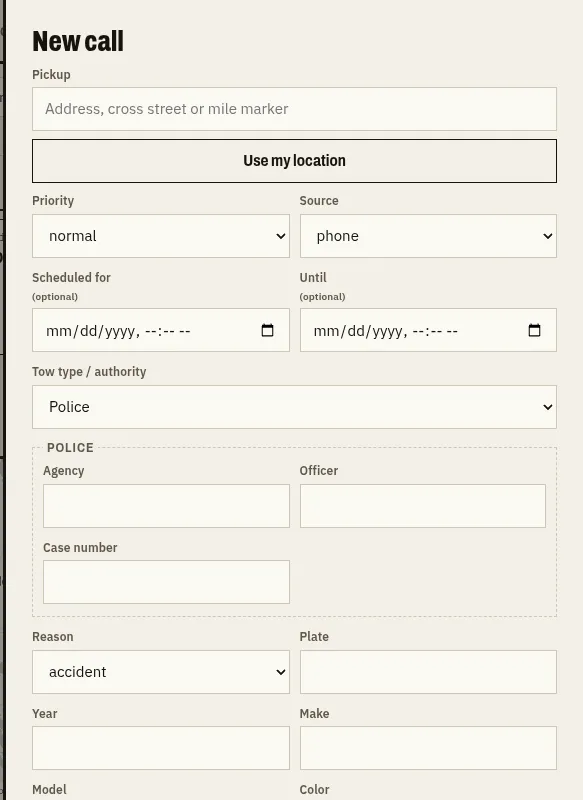
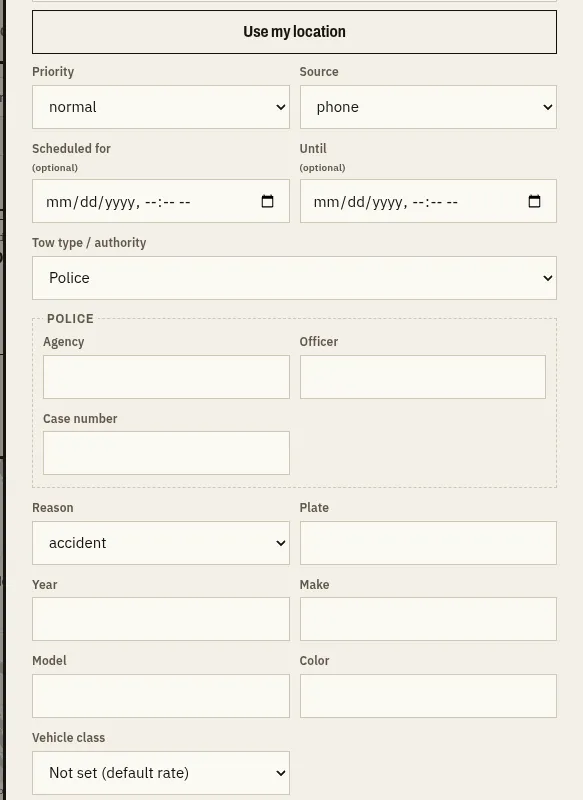
Tap the red New call button. Enter the pickup address (or Use my location), drop-off, priority, source, tow type, reason, vehicle details and how the customer pays, then save. You can also schedule a call for later.
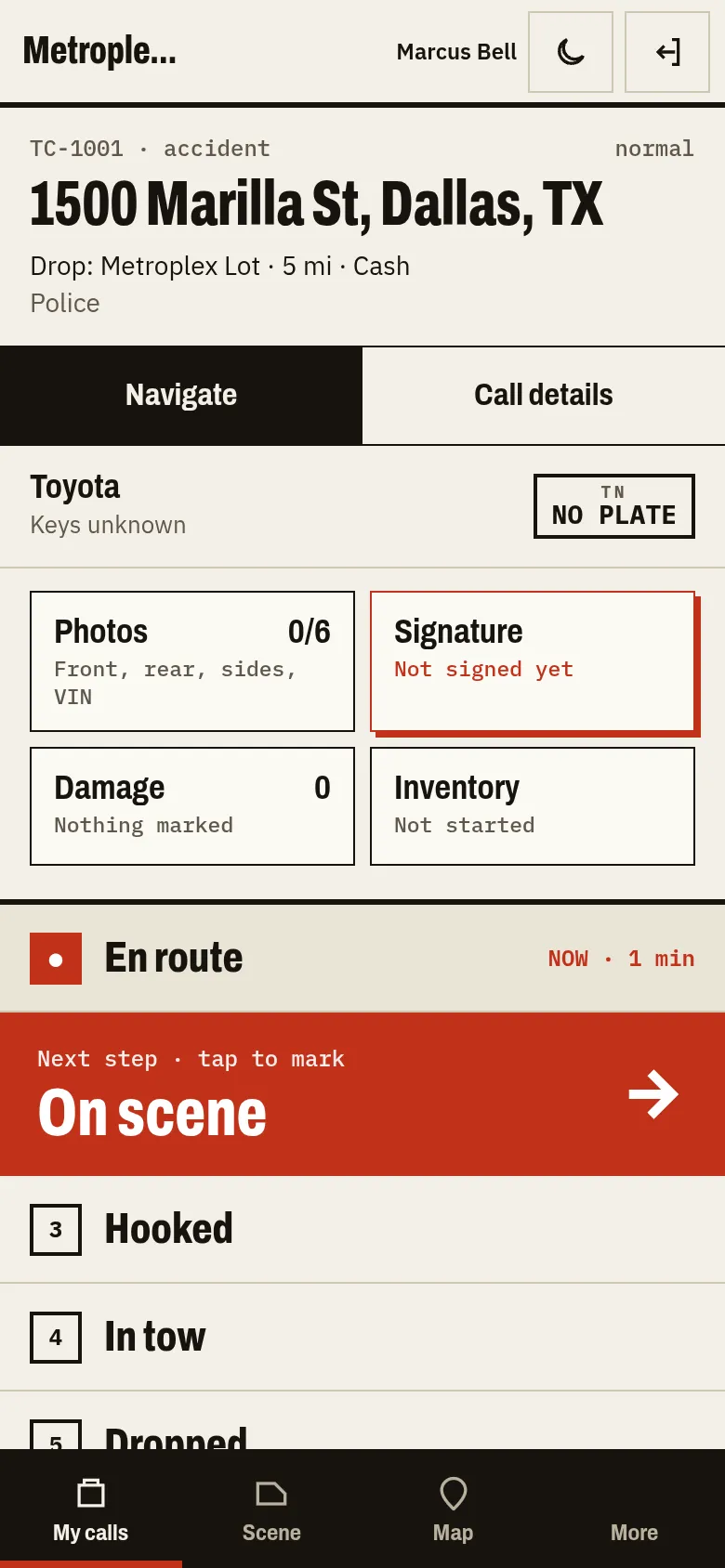
Drivers sign in on their phone and land on My calls. The bottom tabs are My calls, Scene, Map and More (plus Lot for drivers who can take money).
Driver app on a phone
Tap the big button to mark the next step: En route, On scene, Hooked, In tow, Dropped. Tapped the wrong one? Use Undo.
Navigate opens directions to the pickup. Call details shows everything dispatch entered.
On scene, take Photos, mark Damage, fill in the Inventory and get a Signature. You can print or save the scene packet as a PDF.
Each status shows on the Board right away. The full list of statuses is Unassigned, Dispatched, En route, On scene, Hooked, In tow, In lot, Complete and Cancelled.
Finished calls are under More → Finished calls. Dispatch can Reopen call if something needs fixing.
Drivers can turn on Share live location so dispatch sees the truck on the map.
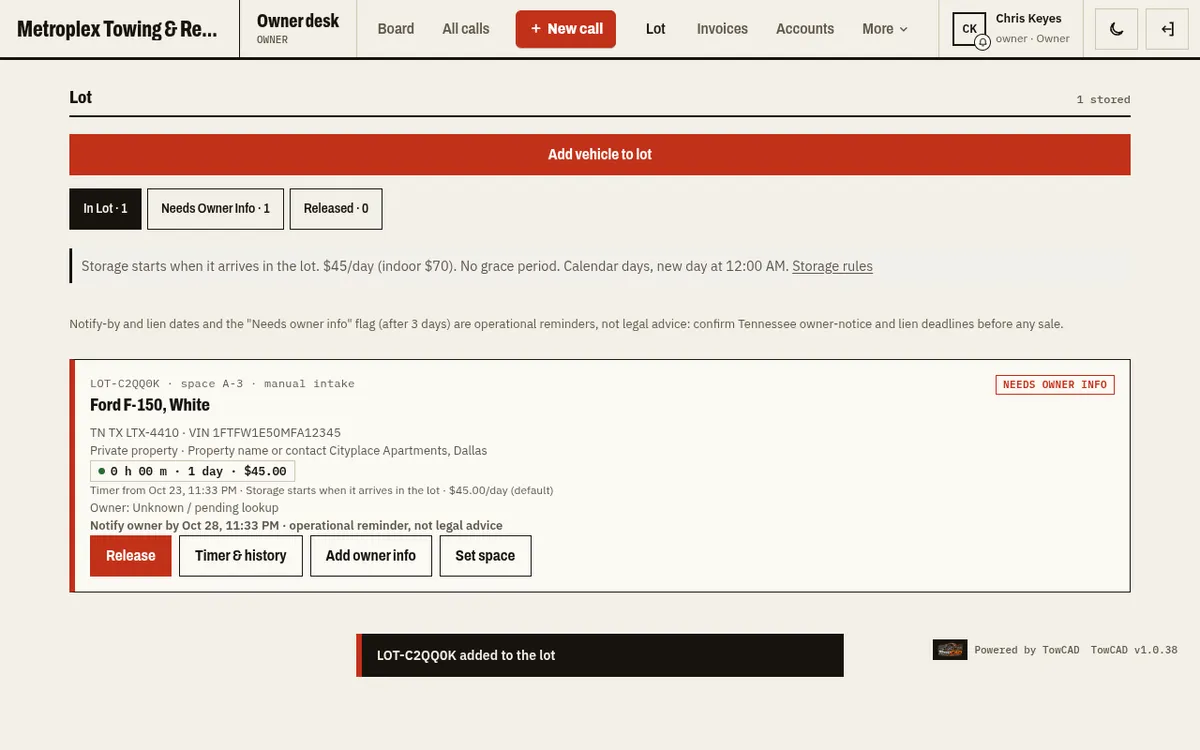
The Lot lists every vehicle in your yard with how long it's been there and what it owes so far. Vehicles go into the lot when a tow is dropped there, or you can use Add vehicle to lot to enter one by hand (VIN, plate, make, model, color, spot and tow type).
The Lot list
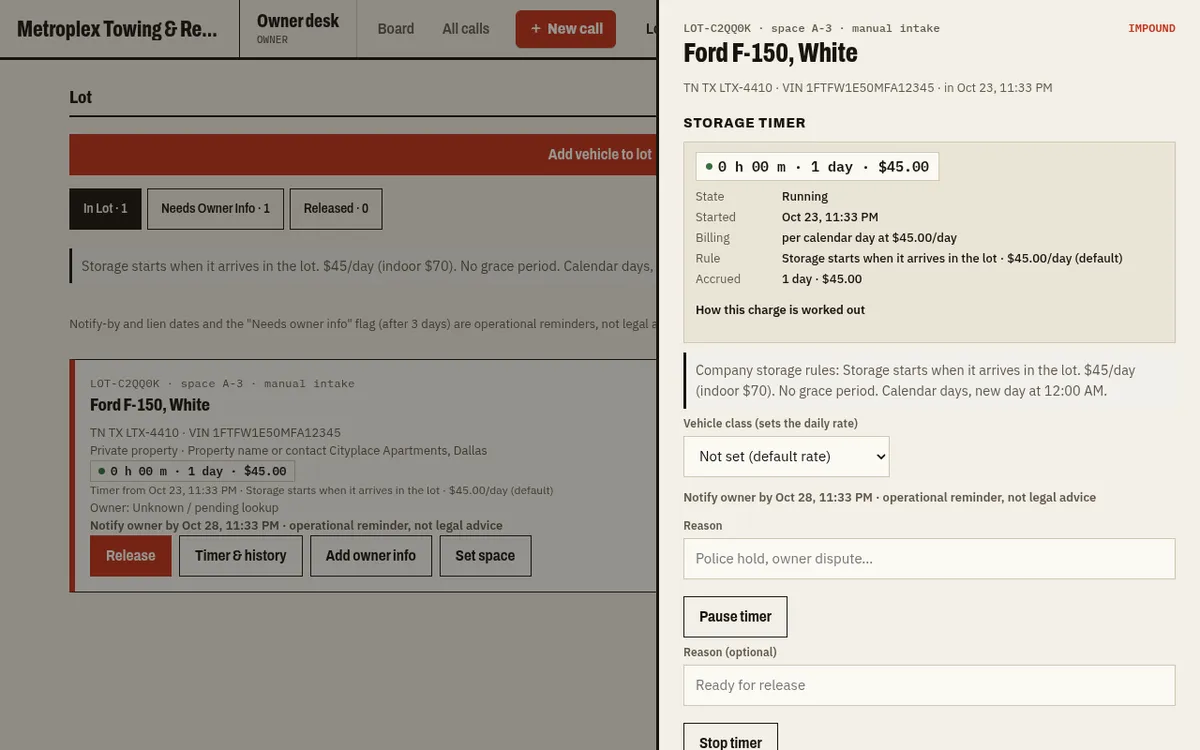
Timer & history shows when storage started and the running charges.
Release records the payment and who picked the vehicle up. Use Record claimant with proof to note a title, registration, court order or lienholder release.
Vehicles with no owner details are flagged Needs owner info. Owner-info reminders can flag vehicles as overdue after a set number of days in the lot and alert the people you pick (never drivers).
Storage timer and history for one vehicle
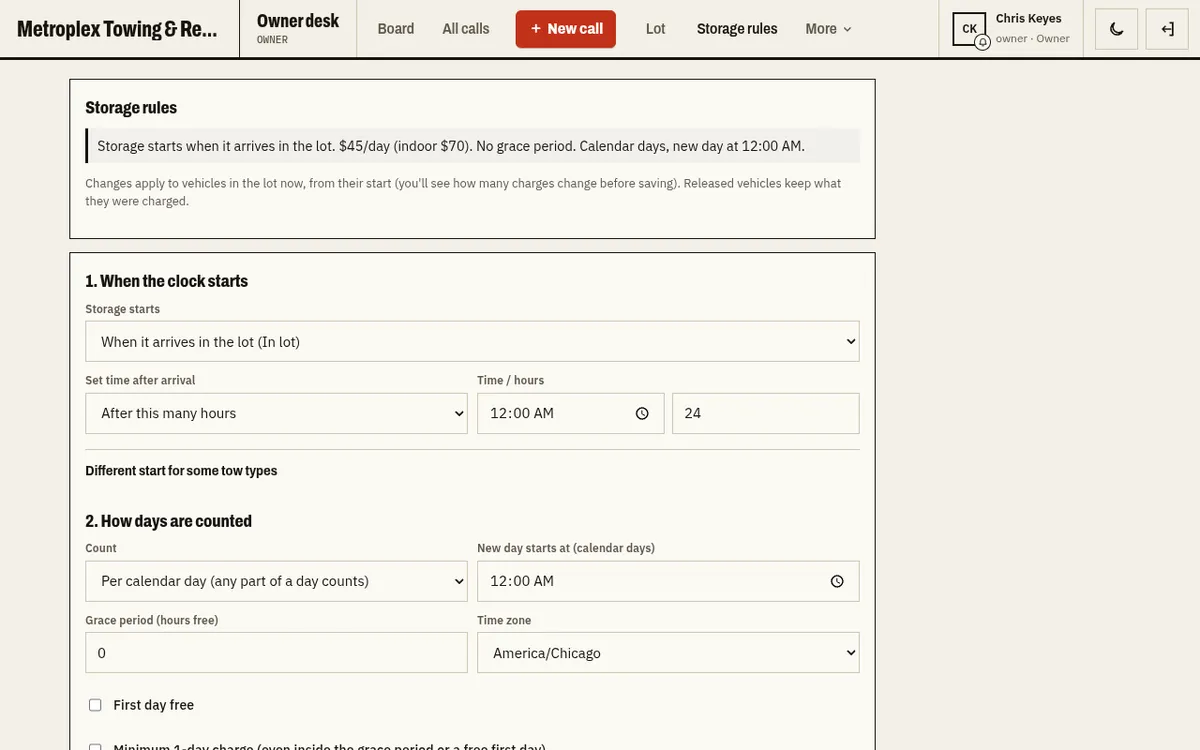
Storage rules
Under Storage rules, choose when the storage clock starts (a set time after arrival, the day after arrival at a set time, or after a number of hours), a different start for some tow types, calendar days or 24-hour periods, a grace period, rates by vehicle class, extra fees and reminders.
Storage rules
Storage and lien dates are operational reminders, not legal advice.
Use Accounts for customers you bill later: body shops, dealers, property managers, motor clubs and others. Each account has a type, payment terms, an optional PO requirement, a discount percent, negotiated rates and contacts.
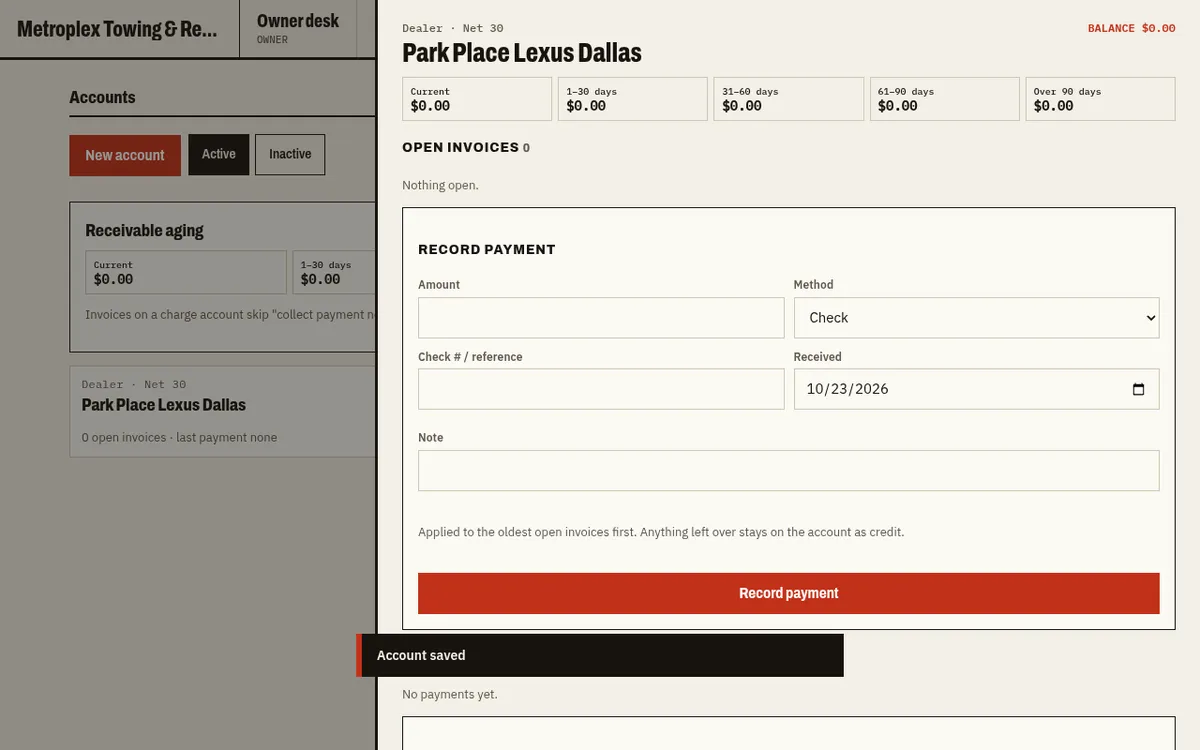
A charge account
See aging and open invoices at a glance.
Record payment applies money to the oldest invoices first; anything left over becomes a credit.
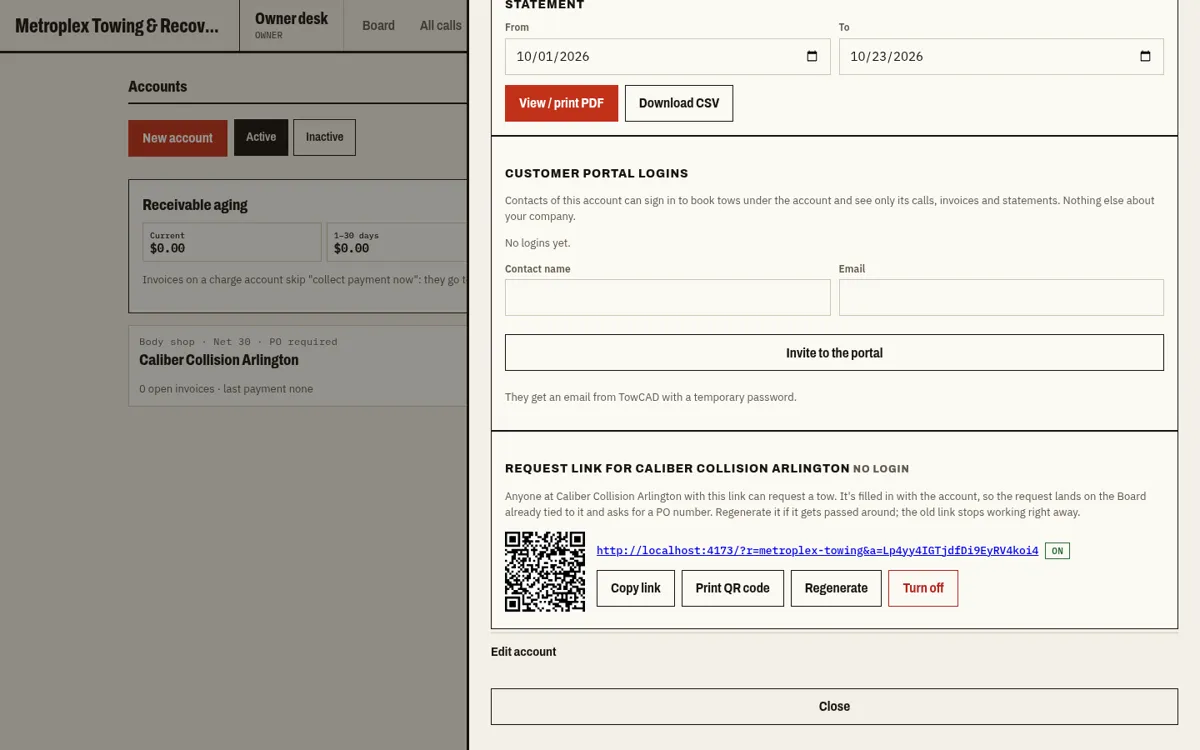
Statement: pick a date range, then View / print PDF or Download CSV.
Invite to the portal gives the account contacts their own login to see their invoices.
Request links let shops, property managers and other customers send you a tow request without a login.
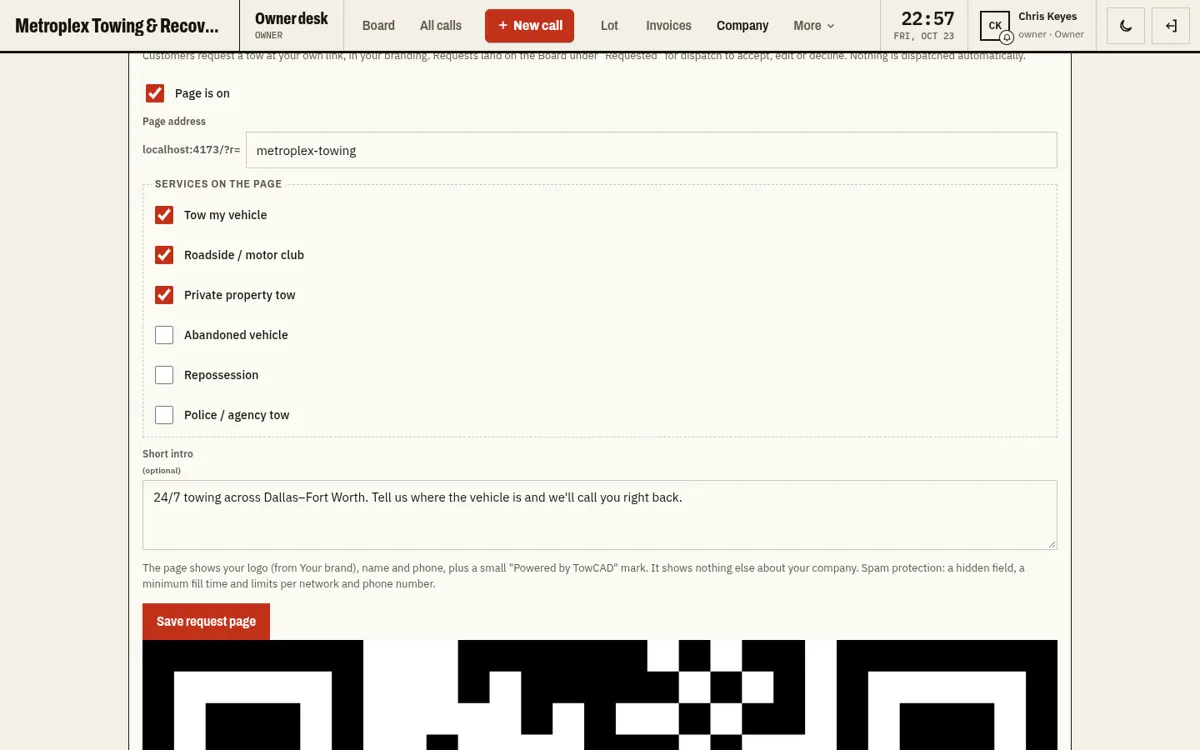
Your company request page
Go to Company → Online request page. Turn it on, pick the services to offer and add a short intro. Then Copy link or Print QR code. New link replaces the address if the old one gets passed around too widely.
Company online request page settings
A link for each account
Open an account under Accounts and tap Create request link. Requests from it are tied to that account automatically. You can Copy, Print QR code, Regenerate or Turn off the link at any time.
Request link on a charge account
The status page
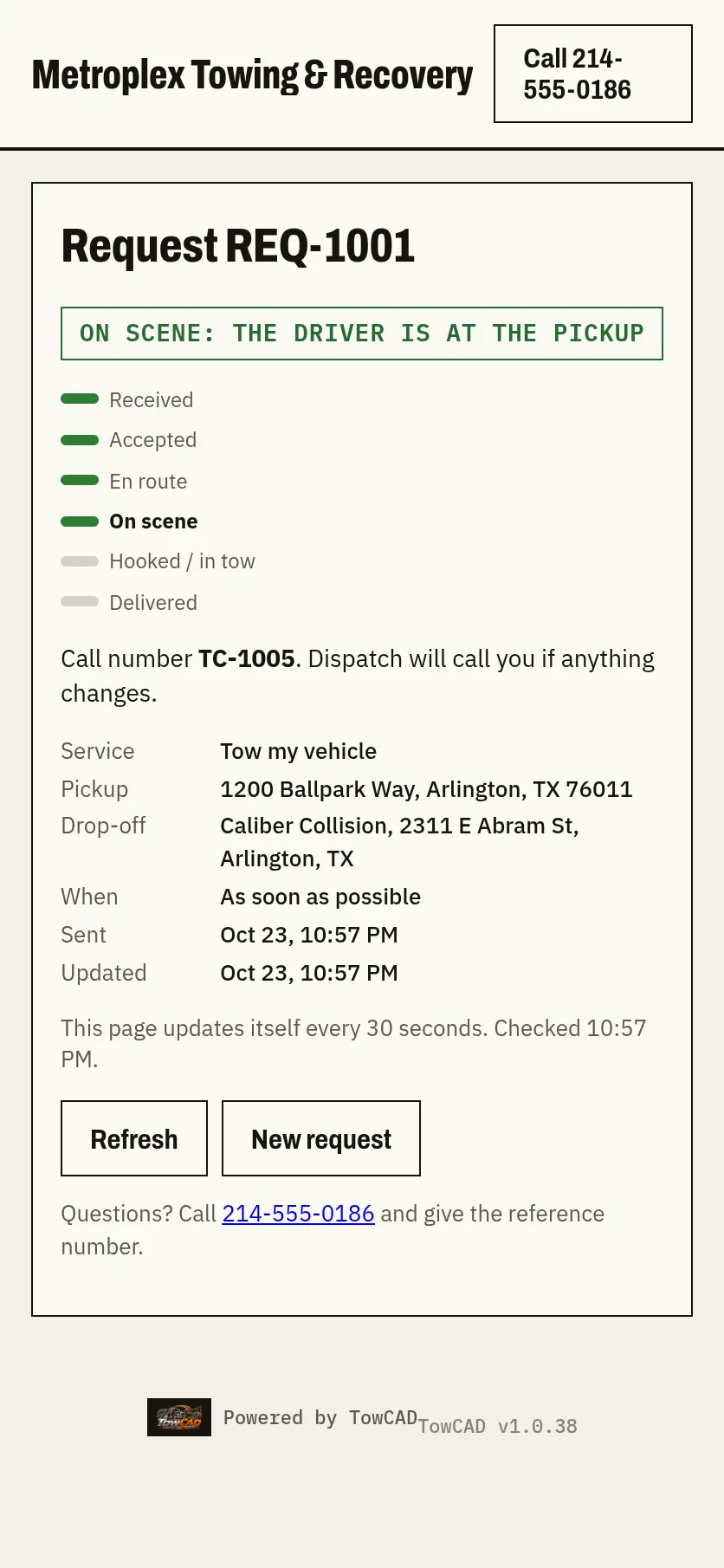
Requests land on the Board under Requested for dispatch to accept or decline. The person who sent the request gets a status page that shows each step: Received, Accepted (with the call number), En route, On scene, Hooked / in tow and Delivered, or Declined/Cancelled. It refreshes on its own every 30 seconds.
Status page on a phone
Request pages have spam protection built in, including limits on how often one network or phone number can send requests.
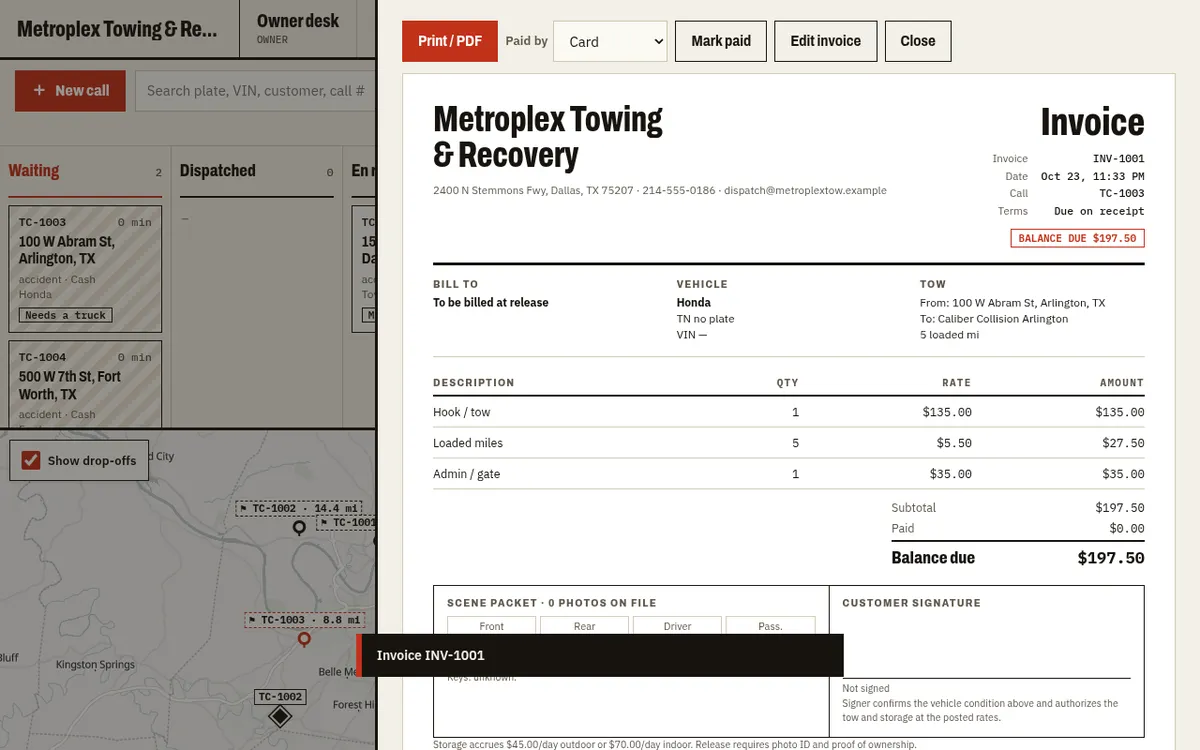
Open a finished call and tap Create invoice, or use New invoice in Invoices. You can Edit invoice, Mark paid, or Adjust paid invoice if something changes later.
An invoice
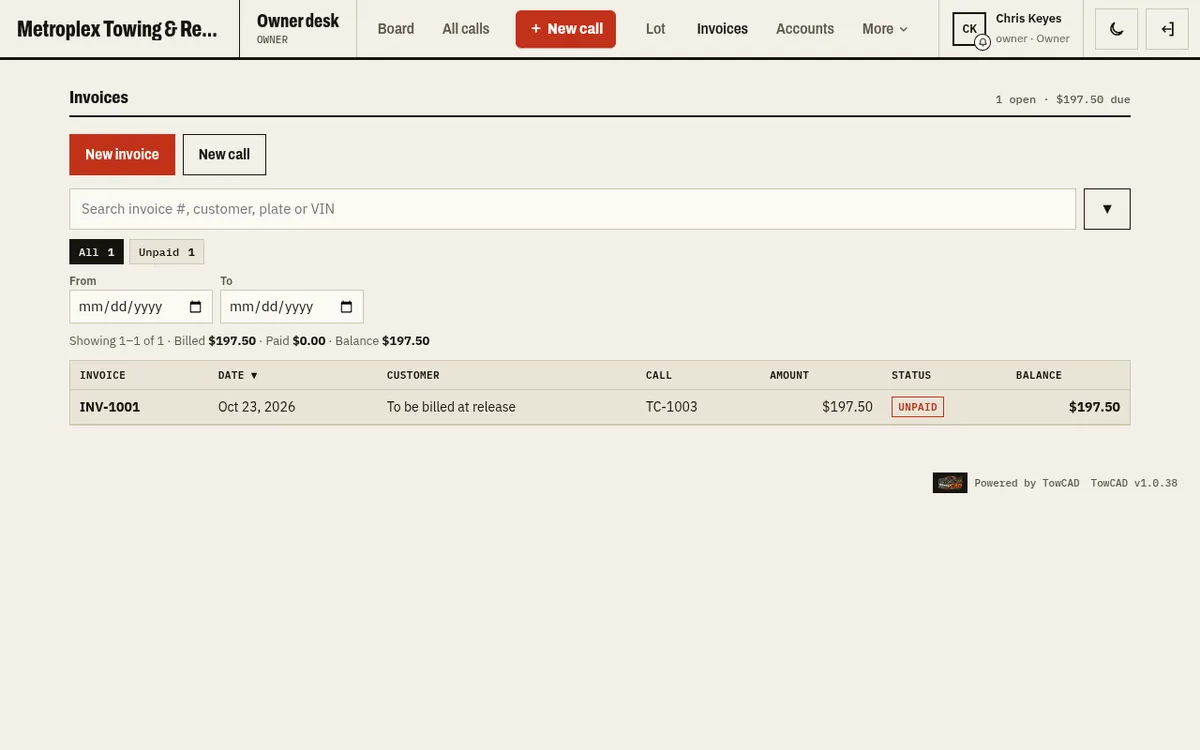
The Invoices list has search, status chips, date and account filters, and shows 25 invoices per page.
The Invoices list
Pay now
Under Company, paste your payment link (it must start with https://). It then shows as a Pay now button and a QR code on invoices, including printed ones.
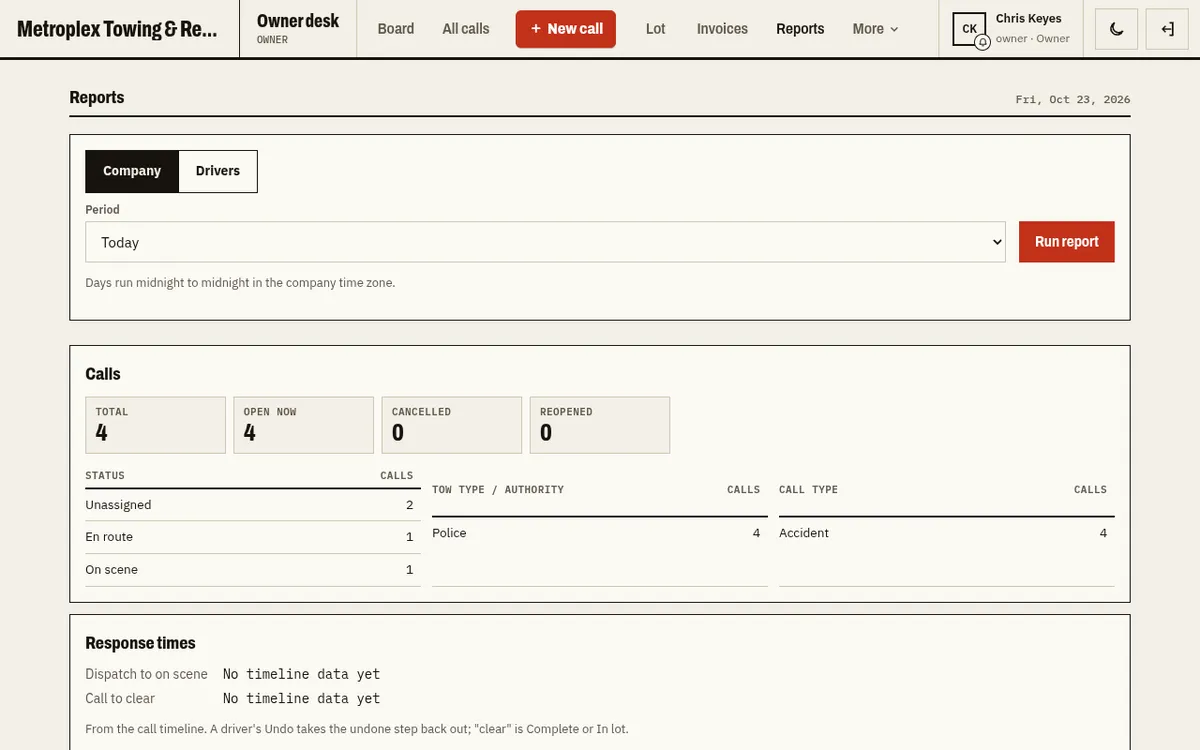
Reports has a Company view and a Drivers view for any date range. It covers call counts, dispatch-to-on-scene times, money collected by payment method, discounts and storage collected.
Company report
Print / PDF for a printable copy.
CSV: call list, CSV: accounts and CSV: driver table for spreadsheets.
Revenue is shown only to owners and billing users. Drivers see My report with their own calls.
Use your email, or your driver login in the form username@COMPANYCODE. If you were sent a temporary password, you'll be asked to choose a new one the first time.
I forgot my password
On the sign-in page tap Forgot password. We email you a code; enter it with your new password. Drivers who sign in with a username (no email) should ask their owner to use Reset password in People.
Add TowCAD to your home screen
iPhone / iPad: open TowCAD in Safari, tap Share → Add to Home Screen, then open TowCAD from the new icon and sign in. Android: in Chrome, open the menu and tap Add to Home screen or Install app.
Notifications aren't showing
On iPhone and iPad, notifications need iOS 16.4 or later and TowCAD added to the Home Screen. Open it from the icon, sign in, then turn notifications on. Android, Windows and Mac work right in the browser.
A call isn't on the map
Its address wasn't found. Open the call and correct the pickup address.
How does my company get TowCAD?
On the sign-in page, tap Start free trial or Request access for your company.